Dear Staff,
I opened up a storage server for storing scans. This serves as the centralized location for hosting card scans on TCG1. The server supports S3 protocol for file modifications. You’ll need to follow this guide carefully if you want to upload/update scans on the server correctly.
Connecting to the Server
 IMPORTANT : Always TRIPLE CHECK what operation are you performing and which directory you are in. If you act careless, you may cause permanent loss of all images on the production server!
-
You will need to use a desktop tool that connects to S3-like APIs. If you haven’t used one before, my recommendation is to download and install Cyberduck. It is free and easy to use, supports all major operating systems, has wide range of support for storage back-ends.
-
After installation we need to enable a profile first. Open settings → profiles. Enable “S3 (deprecated path style requests)”
-
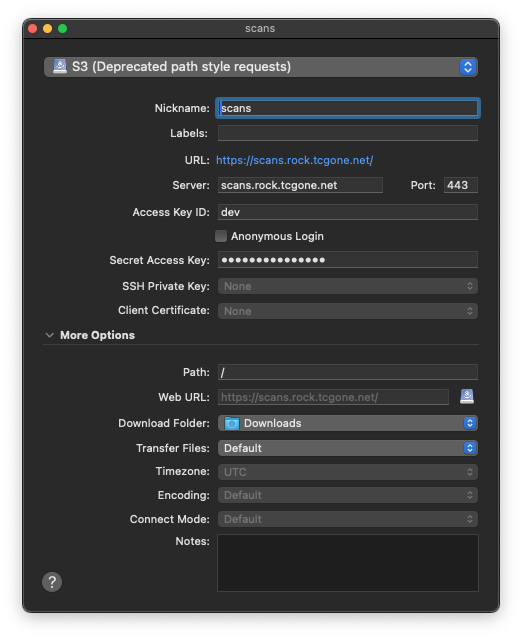
Create a new Bookmark (stores connection configuration for a server) with information below;

Connection type: S3 (deprecated path style requests)
Server address: https://scans.rock.tcgone.net
Access Key: dev
Access Secret: ********************
Path: /
See bottom of this guide for getting access to the secret.
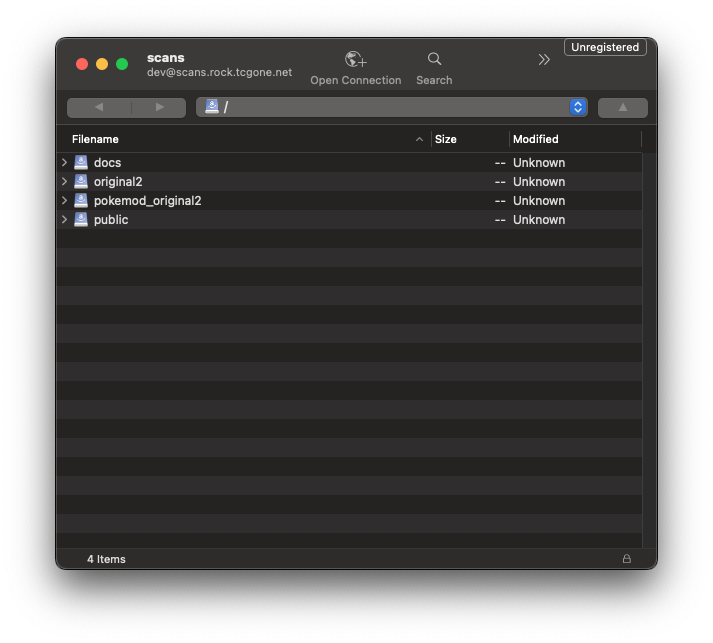
- After connecting, you’ll see the folder directory and you can immediately start doing file operations via drag & drop and actions menu. Please read the next section on which folders you need to use.
Directory Information and Naming
IMPORTANT : Always TRIPLE CHECK what operation are you performing and which directory you are in. If you act careless, you may cause permanent loss of all images on the production server!
original2 folder contains original, unscaled, high-quality images in PNG or JPG formats.
De-facto guidance: Usually, file sizes from 600KiB to 1MiB are common here. Be careful not to put too big images here as it is inefficient. 3MiB should be the maximum size per image.
pokemod_original2 contains originals for pokemod expansion.
public folder is the root folder served on web server. It contains optimized versions. l for large (width=400), m for medium (width=220). This is the only folder which is served to the internet.
File Naming:
each expansion has its name lowercased and spaces are replaced with underscores. Each card number usually starts from 1 and goes up, aligning with card numbers on English releases.
Scans file names need to be in format: $set_name/$number.png
$set_name would be the name of the directory each scan would reside in.
$number must match the card number on Cards pages.
Example: Venusaur ex SCR 1 - Stellar Crown 1/142 - Card - TCG ONE has card number 1, whose path should be: stellar_crown/1.png
Processing Images
Original images are not suitable for serving over internet as some go up to megabytes in size, therefore we first convert the image to JPEG if they were PNG, then we apply JPEG stripping to reduce their size. We use the famous ImageMagick library for doing image transformation operations.
scans.pl script is used to automate this process. Please use this script to prepare images. You’ll need to have some basic command line skills and install some programs to your computer.
You MUST have perl and magick (ImageMagick) installed!
Setup Instructions for Windows
- Install Git For Windows from https://git-scm.com/download/win. This includes perl, therefore you don’t need to install perl separately.
- Install ImageMagick for Windows from https://www.imagemagick.org/script/download.php
- Start Git Bash and run commands inside it.
Setup Instructions for Mac
- Macs already have
perlpre-installed. - Install either HomeBrew (preferred) or MacPorts.
- Install ImageMagick through either
brew install imagemagickorsudo port install imagemagick.
Commands to Process (Resize) Scan Folders
-
Put new scans into the original folder, then
cdinto that folder (it is mandatory due to the way the script was programmed):cd original2 -
The script accepts any number of files/directories separated by a space to convert. Suppose you’ve updated forbidden_light and steam_siege, run command:
../scans.pl forbidden_light steam_siege
This will put output files into ../public folder, you can then upload all new files (including originals) to the server via Cyberduck.
How to get access
Please contact axpendix on Forum or Discord to get “contributor” permission on TCG1 Discord. Then, read this message.